VENTRILO HELP CENTER

How can we help?

From your first question to your next big project. Find answers and get back to what you’re working on.

Browse the topics below, or search for a question.

Getting started

Install, sign in, and make yourself at home.

What can I do with Ventrilo?

Use Ventrilo to ask questions, research, compare information, and draft or revise writing. With the Chrome extension connected and your permission, it can use browser context. Saved Sources let you keep useful material for later, and connectors let you work with supported apps.

Start with a specific request, such as ‘Compare the arguments in these two sources’ or ‘Draft a reply using this page.’ Tell Ventrilo which sources matter, what you want to produce, and any constraints. Check important facts and citations before using an answer.

Link to this answer
How do I install and open Ventrilo?

In desktop Chrome, open the Ventrilo Chrome Web Store listing, choose Add to Chrome, and follow the sign-in steps. Use Chrome’s extensions menu (the puzzle piece) to pin Ventrilo, then click its icon to open it.

You can also open the web chat directly. Browser-aware features need the extension installed, enabled, and connected in that Chrome profile.

Get the Chrome extensionOpen VentriloLink to this answer
Which browsers and apps are available?

Ventrilo is available through the web portal and the extension for Chrome on a computer. Check the Chrome Web Store listing in your browser and region for current extension installation availability. A managed work or school browser may require your administrator’s permission.

Opening the web portal does not give it access to your browser tabs. Browser-aware features require the Chrome extension. Contact support if you need help checking whether your setup is supported.

Check the Chrome Web Store listingLink to this answer
Where are settings and keyboard shortcuts?

Open your account menu in the lower left of the portal and choose Settings. Search settings by name, or choose a section such as Privacy, Memory, Connectors, Plan & Billing, or Usage.

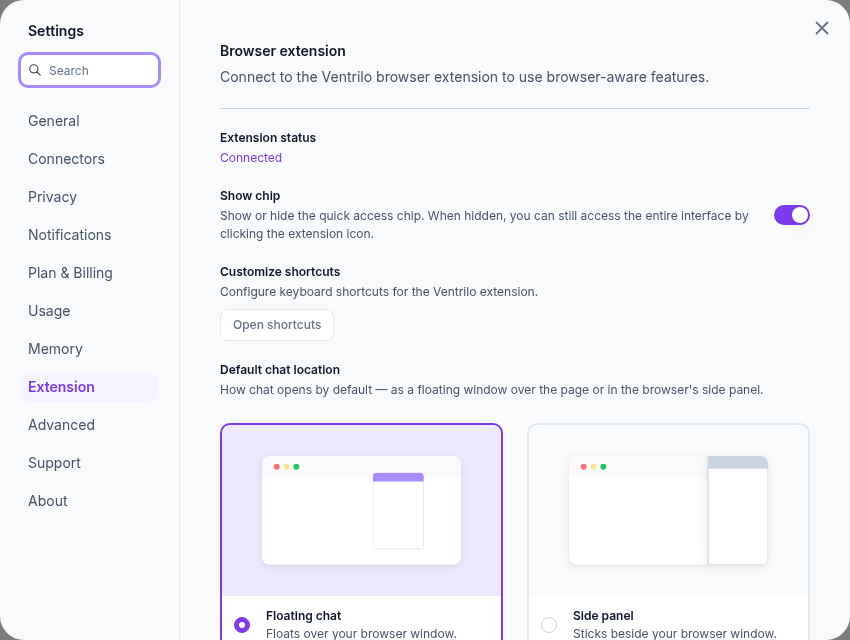
Under Extension, use Customize shortcuts to set your keyboard shortcuts, Show chip to control the quick access chip, and Default chat location to choose the floating window or Chrome side panel. Hiding the chip does not remove access through the extension icon.

Extension settings showing connection status, Show chip, and the Open shortcuts button.
In Extension settings, choose Open shortcuts to customize your keyboard shortcuts. View full size (opens in a new tab)
Open settingsOpen Extension settingsLink to this answer

Chat & browser context

Choose what Ventrilo reads and get useful answers.

Can Ventrilo read all my open tabs automatically?

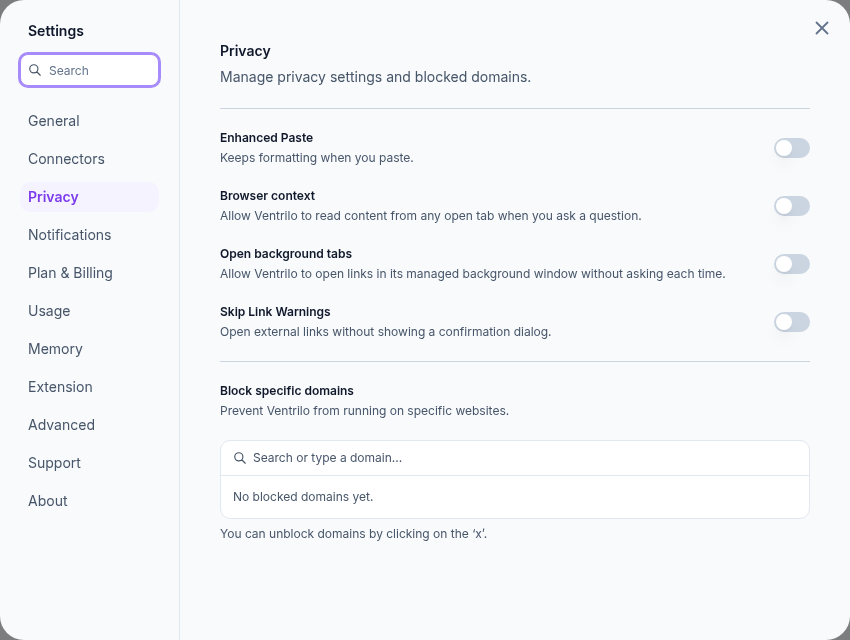
Browser context is permission-controlled. With the extension connected, Settings → Privacy → Browser context lets Ventrilo read content from open tabs when you ask a question. This does not mean every tab is read or included in every answer. Suggestions in an empty extension chat can separately use available current-page context before you choose one.

Name the page or source you want to use and check the answer’s references. A restricted page, a blocked domain, a missing permission, or a disconnected extension can prevent access.

Privacy settings showing Browser context alongside the other browser permissions.
Find Browser context in Privacy. Each browser permission has its own control. View full size (opens in a new tab)
Open Privacy settingsLink to this answer
Why can’t Ventrilo see a page or find something I’m reading?

Check that the extension is enabled in the same Chrome profile, then check Settings → Extension for its connection status. In Privacy, check Browser context and Block specific domains. Reload the source tab after installing or updating the extension or changing Chrome permissions.

Chrome restricts extension access to some pages, including its internal settings and the Chrome Web Store. Content behind a sign-in, inside an unsupported viewer, or not yet loaded may also be unavailable. Open the actual document or provide the relevant text or file directly.

Check extension connectionOpen Privacy settingsLink to this answer
Why does Ventrilo ask to open a link in a background tab?

Ventrilo may need to open a page to read information for your request. Settings → Privacy → Open tabs without asking lets it open links in a Ventrilo tab group without asking each time.

External-link confirmations have a separate Skip Link Warnings setting. Only change these permissions if you are comfortable with the access described; you can change them again in Privacy.

Open Privacy settingsLink to this answer
How do I choose a model, and why do some models use Credits?

Use the model picker in chat to choose among the models currently available. Models differ in speed, capabilities, and usage cost. Larger inputs, longer answers, and multi-step work can use more than a short question.

Check the model picker and Settings → Plan & Billing for your account’s access. Compare model pricing for current rates and which models Basic’s limited free weekly usage and each membership’s included weekly usage cover.

Open Plan & BillingView model pricingLink to this answer
How do I find or manage an earlier chat?

Use the chat list and chat search to find earlier conversations. Open a chat to continue it, or start a new chat for a different task. Chat menus provide actions for managing conversations, including renaming and deleting.

If a chat is missing, first check that you signed in to the same Ventrilo account. Deleting a chat and deleting saved memories are separate actions.

Open chatsLink to this answer
What should I do if an answer is wrong or incomplete?

Open the cited sources and check that they support the answer. Tell Ventrilo what is incorrect, identify the source it should use, and ask it to distinguish source material from assumptions. For a large task, try a smaller, more specific request.

AI can make mistakes or miss context. Verify facts, quotations, calculations, and consequential advice before relying on them. If the problem repeats, share a short example with support.

Link to this answer
How do I keep formatting when pasting?

With the extension connected, enable Enhanced Paste under Settings → Privacy and review the clipboard permission request. Formatting also depends on the destination editor.

If Google Docs asks for Google Docs Offline to support paste, follow the prompt. If formatting still fails, try pasting as plain text and include the destination site when reporting the issue.

Open Privacy settingsLink to this answer

Saved Sources & files

Keep useful material and resolve access problems.

How do I save a page for later?

On a web page, use Save to Memory in the Ventrilo quick access chip. Choose Saved in the portal sidebar to find your saved material and inspect its processing status and contents.

Saving a source keeps material for later use; merely leaving a browser tab open is different. Wait for processing to finish before relying on a newly saved source in a request.

Open Saved SourcesLink to this answer
Are Saved Sources always the latest version of a website?

Treat a Saved Source as captured material, not a promise of a live mirror. Open it to inspect what was captured, use Visit source to compare with the original page, and use Source History to inspect available versions.

If the original has changed, open it and save it again. Ask Ventrilo to use the version relevant to your task rather than assume an older capture is current.

Open Saved SourcesLink to this answer
How do I organize, copy, or delete a Saved Source?

Open the source and use its menu. Pin keeps it easy to find, Copy page copies the generated page as Markdown, and Source History shows available versions. Use Delete and review the confirmation to remove the source.

Removing a source does not retract text already included in a chat or copied elsewhere. Manage chats and memories separately if you also want to remove those records.

Open Saved SourcesLink to this answer
Why is a source still processing or showing an error?

Saving includes capture and processing, so a source may not be ready immediately. Open it to read the status or failure message and use the recovery action shown, such as retrying a failed capture.

Check that you can still open the original, that any required sign-in is complete, and that your account has storage available in Settings → Usage. If retrying fails, contact support with the source type and error message.

Open Saved SourcesCheck usage and storageLink to this answer
How do I let Ventrilo read a local PDF opened in Chrome?

In Chrome, open the extensions menu, find Ventrilo, and choose Manage extension. Turn on Allow access to file URLs, then reload the tab containing your local document. You can also reach Ventrilo’s details by entering chrome://extensions in Chrome’s address bar.

This permission applies to local files opened in browser tabs. It does not grant unrestricted access to every file on your computer. If the document still cannot be read, check its viewer and permissions or attach a supported file to your request.

Link to this answer
How do I use a file or image in chat?

Use the attachment control in the chat composer and select your file, then wait for it to finish preparing before sending your request. Say what you want Ventrilo to extract, explain, compare, or change.

Follow any type, size, or storage message shown by the upload control. For an unreadable document, try a text-based export or provide the relevant excerpt. Attaching a file to a chat and saving a page to Saved Sources are different ways of providing context.

Link to this answer

Connected apps

Connect services and stay in control of their access.

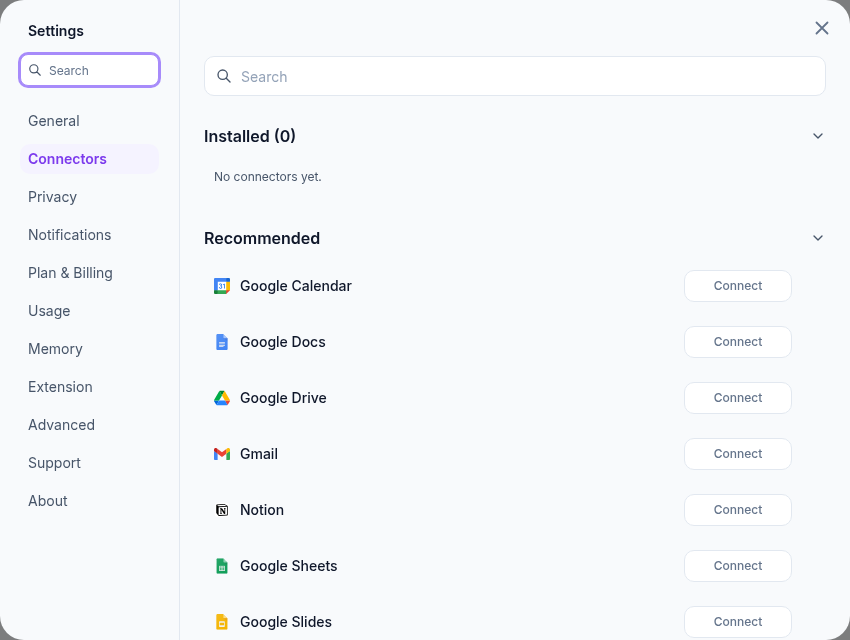
How do I connect an app?

Open Settings → Connectors, choose an available app, and follow its connection flow. Review the app’s data and permissions and make sure you authorize the intended account.

Available actions depend on the connector, your permissions in the connected service, and its current availability. Ask Ventrilo for a specific task and review any authorization or approval prompt it presents.

Connectors settings showing the available apps and their connection controls.
Choose an app in Connectors to review its permissions and connect your account. View full size (opens in a new tab)
Open ConnectorsLink to this answer
Why can’t a connector find my data or complete an action?

Check the connection in Settings → Connectors and confirm you connected the right account or workspace. Ventrilo cannot access data your connected account lacks permission to use. A service may also require renewed authorization or have temporary limits.

Follow any reconnect or permission prompt. Before retrying an action that sends or changes something, check the connected service to see whether the earlier attempt completed.

Open ConnectorsLink to this answer
How do I disconnect an app?

Open the app in Settings → Connectors and choose Disconnect. Disconnecting stops future access through that connection. You can also review Ventrilo’s authorization in the connected service’s own security settings.

Disconnecting does not erase information already included in a Ventrilo chat or memory, or undo changes already made in the connected service. Manage those separately.

Open ConnectorsLink to this answer

Membership, Credits & usage

Understand access, usage, storage, and payments.

What is the difference between Basic, Core, and Plus?

Basic is free and includes limited free weekly usage on efficient models, plus 100 MB of storage. Core and Plus are paid memberships with more included weekly usage, more storage, and the option to buy Credits; Plus also covers every supported model. Compare all three on the Pricing page.

Open Settings → Plan & Billing to see your actual access and available membership options; Settings → Usage shows your included usage and storage.

Open Plan & BillingView usageCompare membershipsLink to this answer
What does complimentary Core or Plus mean?

Complimentary access is temporary access with an end date. It does not renew automatically and is separate from a paid membership or Credit balance. When it ends without a paid membership, your account moves to Basic, which includes limited free weekly usage.

Check your account for the level, end date, and any available ways to earn more time. Follow the eligibility and offer details shown there.

Open Plan & BillingLink to this answer
When does included weekly usage reset?

Basic’s free weekly usage and Core and Plus included weekly usage reset each week, and unused usage doesn’t carry over. Open Settings → Usage for your remaining usage and reset time. Included weekly usage is separate from prepaid Credits and is not a fixed number of messages: cost depends on the model, input, output, and work needed for the request.

When applicable included usage runs out, available Credits can keep you working. Otherwise, follow the options shown in the product, such as waiting for the reset or choosing another model.

View usage and reset timeLink to this answer
How do I buy Credits, and do they expire?

Open Settings → Plan & Billing and use Add Credits when available. Review the purchase amount and terms before completing checkout. If the option is unavailable, check the access and billing information shown in your account.

See the prepaid Credits section of the Terms of Use for expiry, purchase eligibility, and what happens when a membership ends. Check Plan & Billing for your own Credit balance.

View CreditsCredit termsLink to this answer
What is auto-reload, and how do I turn it off?

Auto-reload can purchase more Credits automatically under the settings you authorize. Review its availability and settings in Plan & Billing before enabling it, and turn it off there if you no longer want automatic Credit purchases.

Turning off auto-reload does not cancel your membership. Managing your membership and managing automatic Credit purchases are separate actions.

Manage Credits and auto-reloadLink to this answer
How do I change or cancel my membership or update payment details?

Open Settings → Plan & Billing and use the membership management option to open billing management. Review the effective date and confirmation shown for a change or cancellation. Use billing management for available payment-method and invoice options.

Removing the Chrome extension or signing out does not cancel a paid membership. If you cannot access billing management, contact support using the email associated with your Ventrilo account.

Open Plan & BillingLink to this answer
Why am I being asked to add Credits or fix a payment?

Read the message shown in chat: included weekly usage may have run out, the selected model may require Credits, your Credit balance may need to cover earlier usage, or a membership payment may need attention.

Check Usage and Plan & Billing, then use the action offered for that situation. A temporary service error is different from a funding problem; if your account looks correct, try again later or contact support with the exact message.

Open Plan & BillingView usageLink to this answer
What happens when my storage is full?

Open Settings → Usage to check your storage use and included capacity. Compare the storage options on the Pricing page before adding more material.

If an upload is blocked, remove material you no longer need or use the storage or billing option offered by your account. Follow any retention deadline shown in the product; keep your own copy of important files.

View usage and storageView current storage pricingLink to this answer

Privacy & memory

Manage permissions, personalization, and your data.

How do I prevent access to particular websites?

Use Settings → Privacy → Block specific domains to block sites. You can also turn off Browser context to stop allowing Ventrilo to read open tabs for your questions.

Changing access controls does not remove material you previously saved or included in a chat. Delete those records separately when needed.

Open Privacy settingsLink to this answer
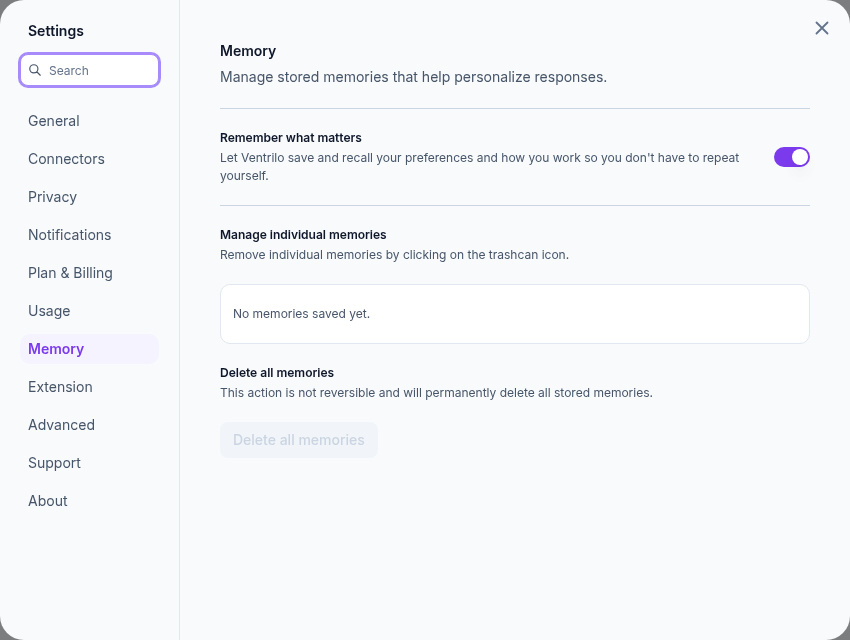
What does Ventrilo remember, and how can I remove memories?

Settings → Memory includes Remember what matters, which lets Ventrilo save and recall preferences and how you work. You can review and remove individual memories or choose Delete all memories.

Turning personalization off and deleting stored memories are separate actions. Saved Sources, chat history, and memories also have separate controls; removing one does not automatically remove the others.

Memory settings showing the Remember what matters control and stored memories area.
Use Remember what matters to control personalization, and review stored memories below. View full size (opens in a new tab)
Open Memory settingsLink to this answer
Where can I learn how my data is used and retained?

The Privacy Policy explains the information Ventrilo processes, service providers, retention, and your rights. Browser permissions control access, but they do not mean all processing takes place on your device.

Closing the browser does not delete your chats or attachments. Read the policy’s data-retention section for deletion timelines and the privacy-request contact.

Read the Privacy PolicyLink to this answer
How do I delete my Ventrilo account?

Open Settings → Advanced → Delete account and read the confirmation carefully. Account deletion is permanent; copy or download information you need beforehand.

If you only want to stop paid membership renewal, use Plan & Billing instead. For deletion access problems or a privacy request, contact the address listed in the Privacy Policy.

Open Advanced settingsOpen Plan & BillingPrivacy requestsLink to this answer

Troubleshooting & support

Get unstuck and reach the team.

What should I try if the extension is disconnected or not responding?

Open chrome://extensions in Chrome’s address bar and check that Ventrilo is enabled. Confirm you are using the Chrome profile where it is installed, then reload the affected page and the Ventrilo portal. Check connection status under Settings → Extension.

If it still fails, restart Chrome after saving your work. A work or school browser may have policies that prevent extension access. Contact support if the problem persists; reinstalling is a later troubleshooting step.

Check extension connectionLink to this answer
How do I reinstall Ventrilo for Chrome?

Before removing the extension, copy any unsent drafts or other work you need. Open chrome://extensions, find Ventrilo, choose Remove, and confirm. Then install Ventrilo again from its Chrome Web Store listing and follow the sign-in steps with the same account.

Pin the icon from Chrome’s extensions menu and reload the pages where you want to use Ventrilo. Reinstalling resets extension-local state and may require you to grant permissions again. It does not cancel your paid membership.

Reinstall from the Chrome Web StoreLink to this answer
What if sign-in loops or I appear to be in the wrong account?

Check the account shown in Ventrilo and the Chrome profile you are using. If necessary, use Settings → General → Sign out and sign in with the account that owns your chats and membership.

Reload the portal after signing in and check your extension connection. If sign-in still loops, contact support with your browser version and the exact error. Never share your password or verification codes.

Open General settingsLink to this answer
How do I contact support or report a bug?

Use Contact support on this page or Settings → Support → Contact support to open the support messenger. Include the email address associated with your account. Describe what you tried, what you expected, and what happened. Include the exact error, approximate time, browser version, and whether the issue occurs in web chat, the side panel, or the floating window.

A short set of steps and a screenshot can help. Remove private content, passwords, payment details, and verification codes before sharing. For billing questions, identify the account and purchase in question without sending full card details.

Open Support settingsLink to this answer

Still need a hand? Contact support